
How to return an item purchased in our store
Sometimes you need to return something, and we're understanding. We do our best to provide the proper information and guidance for you to choose the right stuff - but we're almost always amenable to returns as long as they follow our process and return policy.
BEFORE YOU REQUEST A RETURN
...please read over our return policy (https://gollihurmusic.com/return-policy/) to ensure that the item is returnable, as there are time limits and some (rare) exceptions to what can be returned, and in what condition. Your request to return an item is just that - a request - and we must authorize it before you pack it up and send it back.
How to request your return
Once you've determined that the item(s) is/are returnable, here's how you request the return:
|
TL;DR: (Too Long, Didn't Read) - if you consider yourself "internet savvy" and don't need all the verbose instructions below, here's the condensed instructions: |
1. Log into your account at GollihurMusic.com
Use the "Sign In" link in the upper right corner, or click here. Yes, you have an account - a customer record is automatically created for you when you place an order, and you can choose to access your order history using this "account." If you did not set a password (or have forgotten it), a random password was assigned to protect your information. Simply use the "Forgot Your Password" link on the sign-in page to be sent an email with a link to reset your password. Then log in.
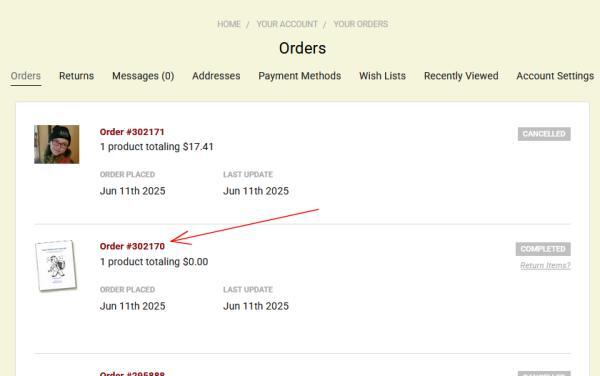
2. Open the order that contains the product you wish to return
Click the order number for the order that has the item(s) you want to return. (See red arrow in graphic, below). This will open the order.
If the order that contains the item(s) does NOT appear in your orders list, there could be a good reason for that - see the box at the bottom of the page.
3. Select item(s) to return
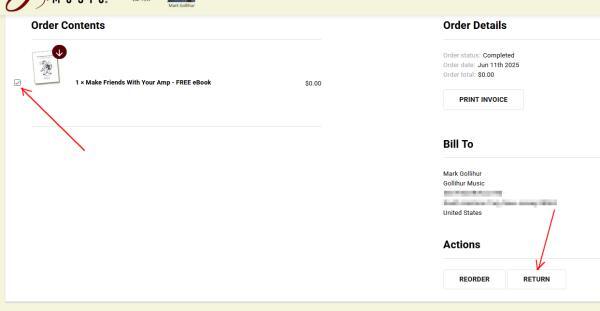
On the page that opens, you'll see a checkbox for each item ordered - check the box(es) for item(s) you wish to return, and then click the "RETURN" button in the bottom right of the window (again, see red arrows, below).
4. Enter details for return
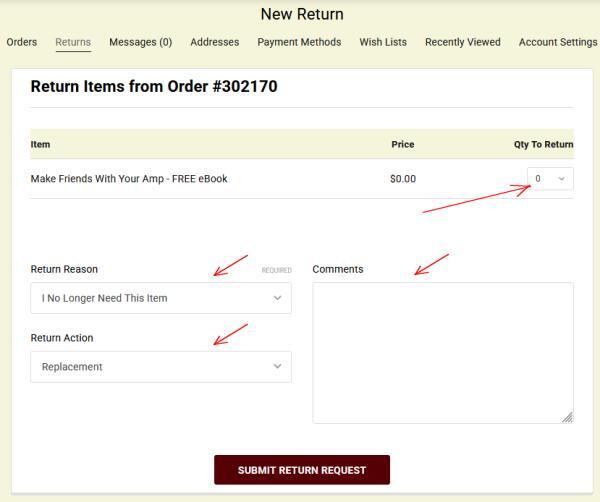
Finally, select the quantity of each item being returned (this will usually be "1" unless you bought multiples of that item and wish to return more than one), select the reason you're returning, select your requested return action (refund, exchange, credit, etc. - this may be subject to our return policy), and type in any further explanation or comments to help us understand/decide. Specifically, if you chose "other" in the "reasons" or "action" box, please explain.
Once you've updated all the information, click "SUBMIT RETURN REQUEST."
5. Await our response BEFORE you ship your return
We monitor return requests and will let you know (by email) as soon as we can that we can authorize your return. We are not in the office on weekends or holidays, so you may have to wait until the next business day. That said, you should immediately receive an automated email confirming your return request, which will provide instructions for how to handle your return once authorized.
It is only after you have received an email authorizing your return that you may go ahead and return the item(s), using the instructions in your confirmation.
If we decline your request (rare), we will generally follow up with a personal email explaining why, and what, if any, other courses of action are available to you.
That's it! We've tried to make this process as painless as possible. Let us know if you have difficulty.
The order with the items to return is not in your order history?There is usually one of two reasons that this would be the case.
|